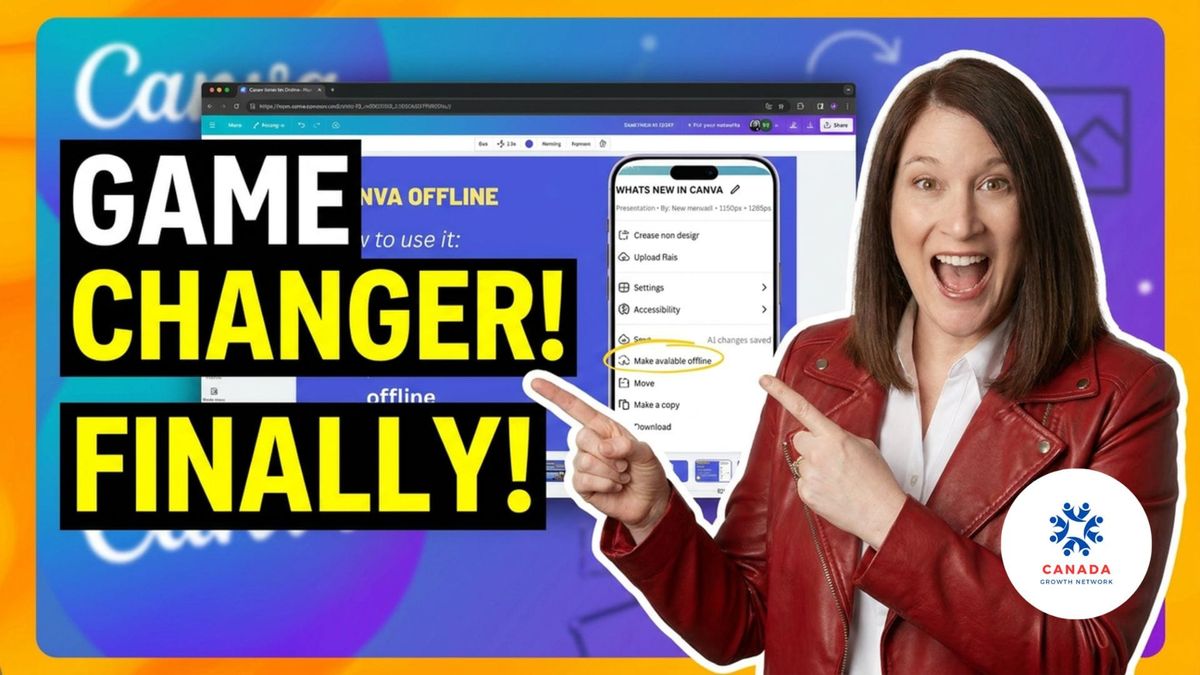
This Canva Update Is Breaking the Internet (Here's Why)
Canva Expert Thea Newcomb demos five new AI features live at Canada Growth Network. Image to video, Magic Layers, offline mode, and more — ready to use today.

Hosts: Percy Barr, Wayne Pratt and Bernie Franzgrote
Canva Expert Thea Newcomb demos 5 new AI features live at CGN — image to video, Magic Layers, offline mode, and more for solopreneurs.
GROWTH CATEGORY: AI & Automation
Most solopreneurs are creating content with one hand tied behind their back. They use Canva, but they are using the version from two years ago. Canva Expert Thea Newcomb joined the Canada Growth Network Power Hour and ran live demos of five AI features that change what a one-person content operation can actually do.
Watch the full conversation here:
WHO THIS IS FOR
SMB owners / Solopreneurs / Content creators / Leaders building their own brand visuals without a design team
Key Lessons
1. AI tools inside Canva are ready to use today — no learning curve required.
The five features Thea demonstrated are already available in most Canva accounts. Image to video, photo style match, AI video effects, offline mode, and Magic Layers require no plugins, no upgrades, and no design background. Thea turned a static dog photo into a five-second animated clip in under thirty seconds. That is a social post asset created in less time than it takes to write a caption.
2. Magic Layers solves a real problem for AI content creators.
Anyone who has generated an image with an AI tool knows the frustration — the graphic is close, but the text is wrong or the layout is off. Magic Layers separates the elements of any uploaded image so you can move, resize, or delete individual pieces. You are no longer stuck with the whole image as one locked unit.
3. Offline capability is a practical tool, not a novelty.
Canva offline is not a flashy feature. It is a safety net. If you present at events, run workshops, or work in locations with unreliable internet, saving your design locally removes a real point of failure. Thea flagged it as underused. She is right.
Practical Steps
- Open Canva this week, find a free photo, and test the image to video feature before your next social post
- Upload an AI-generated image and click Magic Layers to explore what you can edit independently
- Before your next in-person presentation, go to File and save it for offline use
About Thea Newcomb
Thea Newcomb is a UK-based Canva Expert who teaches solopreneurs, authors, and small business owners how to create professional content using Canva — no design background required. She runs courses, workshops, and a free monthly Canva Clinic. She helps people stop wrestling with design tools and start producing content they are proud of.
Thea previously joined Knack 4 Business in Season 1 Episode 055 — Easy Creativity Unleashed Using Canva.
Listen on Audio
- Web Indexer — search every K4B episode by topic
- Join Canada Growth Network — $1 CAD your first month
- Gentry Learning podcast: Property Wizard Podcast
- Search K4B episodes by topic
- Want to be a guest? Register here
- Attend the Canada Growth Network Monday Power Hour free
FAQ
What Canva features did Thea Newcomb demonstrate? Thea covered five features: AI Video Effects, Photo Style Match, Image to Video, Canva Offline, and Magic Layers. Each was shown live with real demos inside a free and pro Canva account.
Do I need a Canva Pro account to use these features? Most of the features Thea demonstrated are available on the free Canva plan. Image to video credits vary by plan level — free users get a limited number, pro users get more. Magic Layers and offline mode were shown across both account types.
What is Magic Layers in Canva? Magic Layers is a Canva feature that separates the individual elements of an uploaded image — including AI-generated images — so you can move, resize, or delete each piece independently. It is especially useful for editing images you did not build from scratch inside Canva.
Acknowledgements
Carl Richards
Fred Crouch
Jovan Strika — @Hive
Melanie Webber